Bubble lesson of the day: building Yelp! For now, we’re going to program a simple version that focuses on coffee shops. On Bubble, such an app takes about 30 minutes to build – starting from a white page!
Here is the working app: https://bubble.i0/site/coffeesearcher/index
And here is the ‘source code’: https://bubble.i0/page?id=coffeesearcher
Getting Started
How are we going to structure our app? We need two pages: one for the submission of coffee shops, and one to display them on a map.
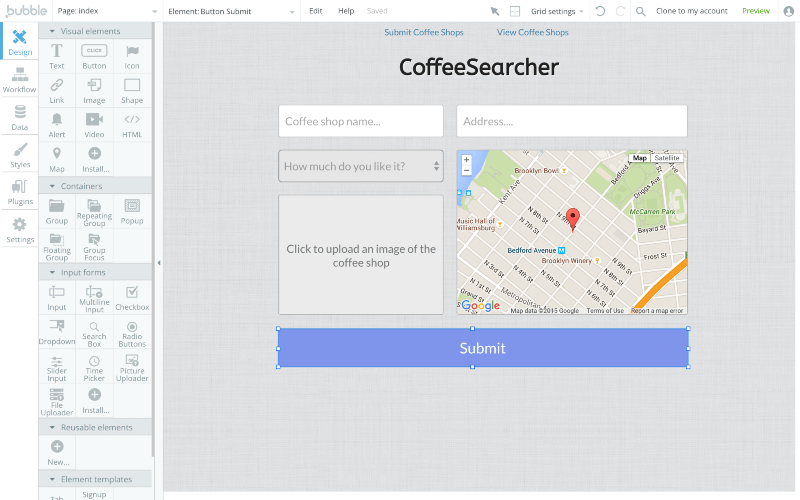
Let’s start with our first page. We need an input for the coffee shop name, an input to type the address, a picture uploader, and a dropdown to rate on a scale from 1 to 10. We’re also going to add a map, so that the user can make sure she typed the right address. Finally, a button ‘Submit’ will allow users to actually save their entry.
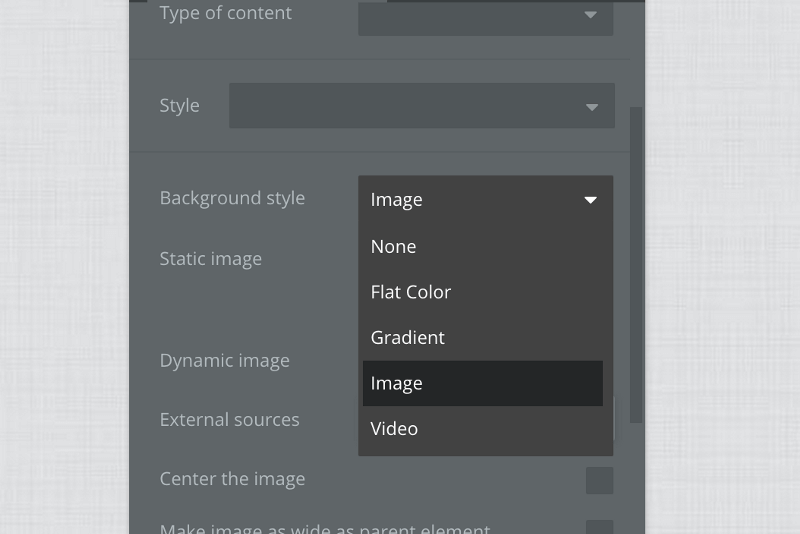
So here is our white page. Let’s add a background texture. I usually use this website http://subtlepatterns.com to get some nice textures (free). First, I click on the white page to change the background. Then, I pick ‘image’ and upload the texture i took from subtlepatterns.
Alright, let’s start building our page. Here is what it looks like after adding the 2 inputs, the drop down element, the picture upload button and the map.
Making The Page Work
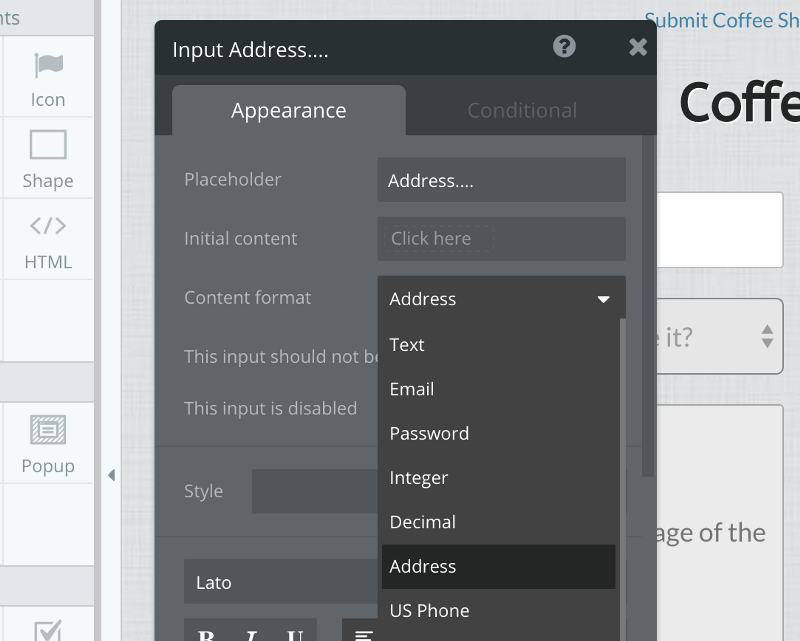
First, I need to make the input type “address” (so that the input will make sure anything typed there can be understood by Google Maps). I do this simply by picking “Address” in the Content Format section in the Property Editor.
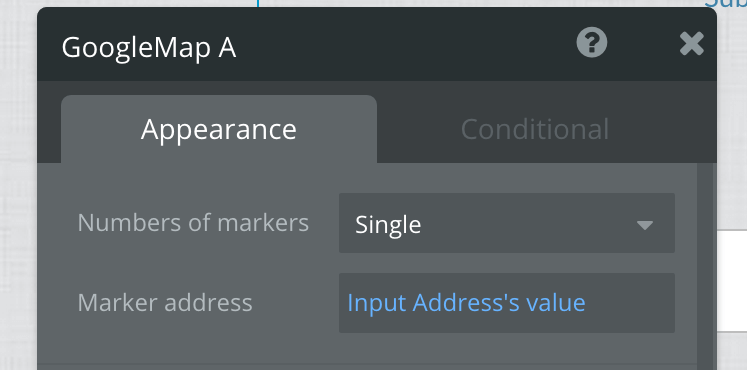
I also want to have the map display the address that has just been typed. To do this, I double click on the map and define the address of the marker as “Input Address’s value”.
Last, I had to enter the options for the drop down menu. In this case, these are options 1 to 10.
Programming The Workflow
Okay, now let’s add a button ‘Submit’ below the different elements and move to the workflow part. What do we want to happen when the user clicks on Submit? We want to save this new coffee shop. So let’s double click on the button and click on ’Start/Edit workflow’.
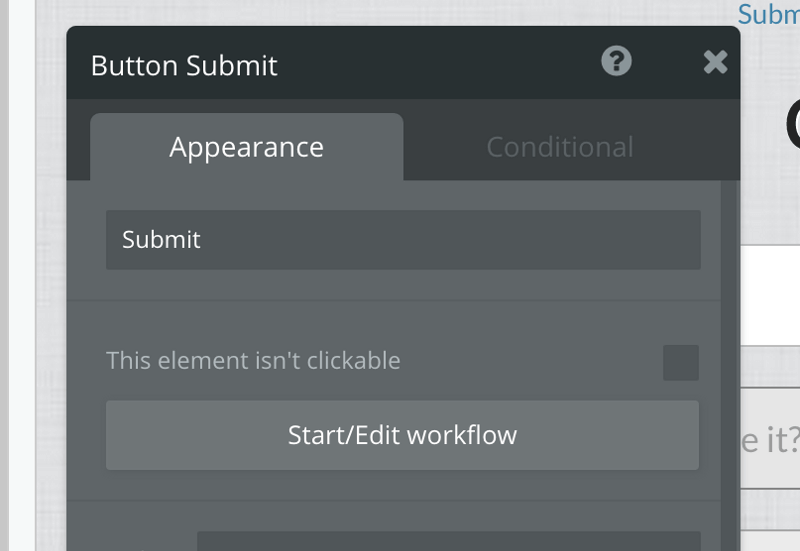
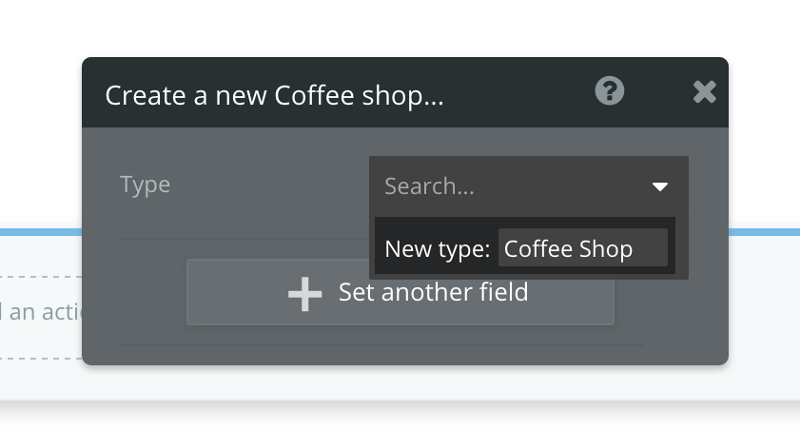
This takes us to the workflow page, where we define what the app does. The action we want to happen then is ‘Create a new thing’ in the Data part. In this particular case, the new thing is a coffee shop.
Click on ‘Create a new type’ and type coffee shop.
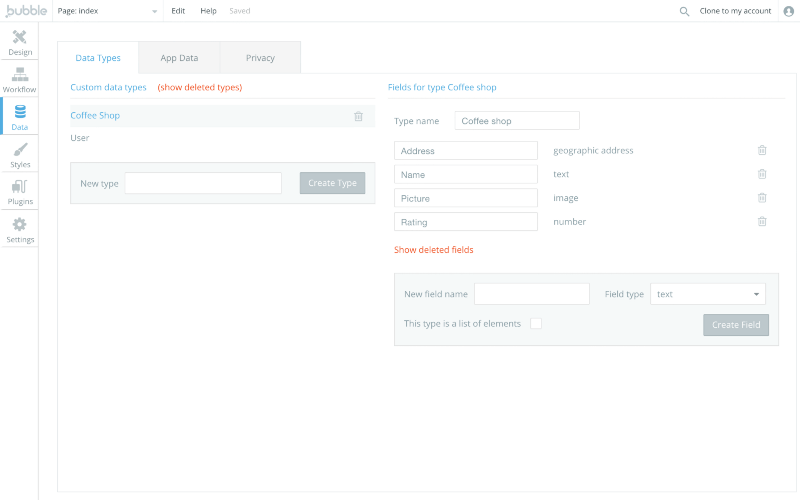
Now, what are the fields that are going to describe our coffee shop? Well, these are related to the inputs I’ve drawn: the name, the address, the picture, and the rating. I can create these fields in the ‘Settings’ tab. I have to be careful about two things: the type of the address field should be an address (!), and the rating should be a number.
Let’s get back to our action. The logic here is to say where the data we want to save is coming from. This is the content of the inputs.
Here is what it looks like:
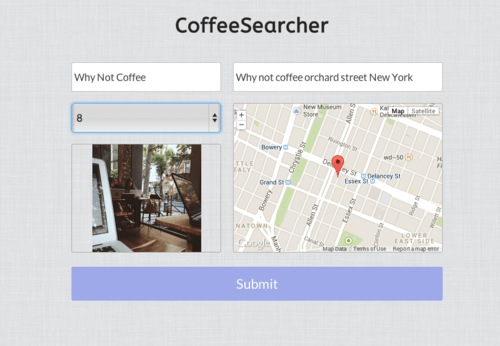
And we’re done for the submission part. Now, our users can save coffee shops. If I press preview, I can start using my app!
Creating A Display Page
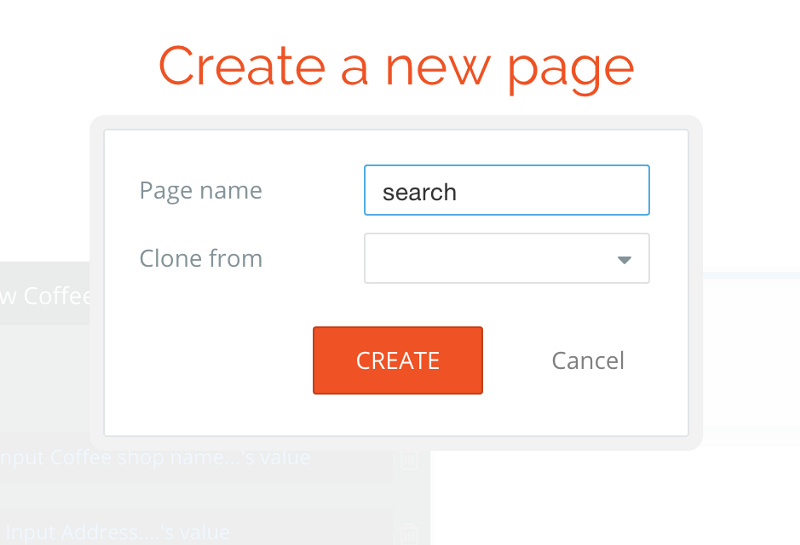
Now, we want to create another page to display what has been submitted. This is actually going to be much faster. Begin by clicking on ‘New page’ in the application menu and name it ‘search’.
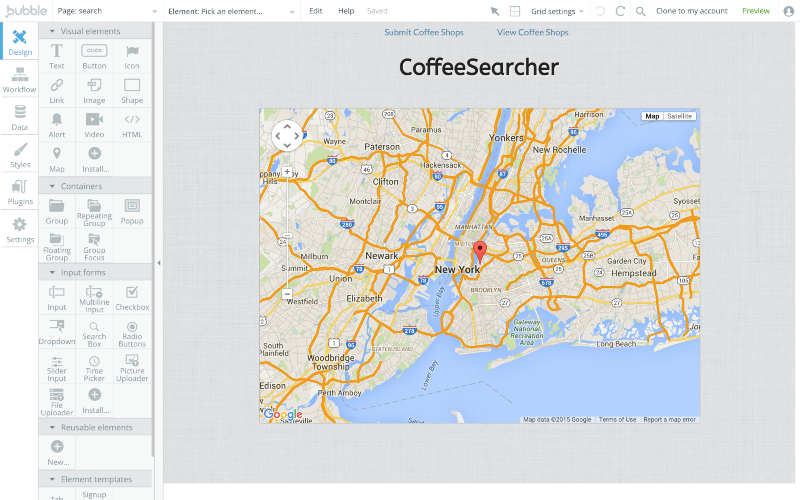
Let’s apply the same background fix with the texture. Now, I’m going to add a map element that will pretty much take up the whole page.
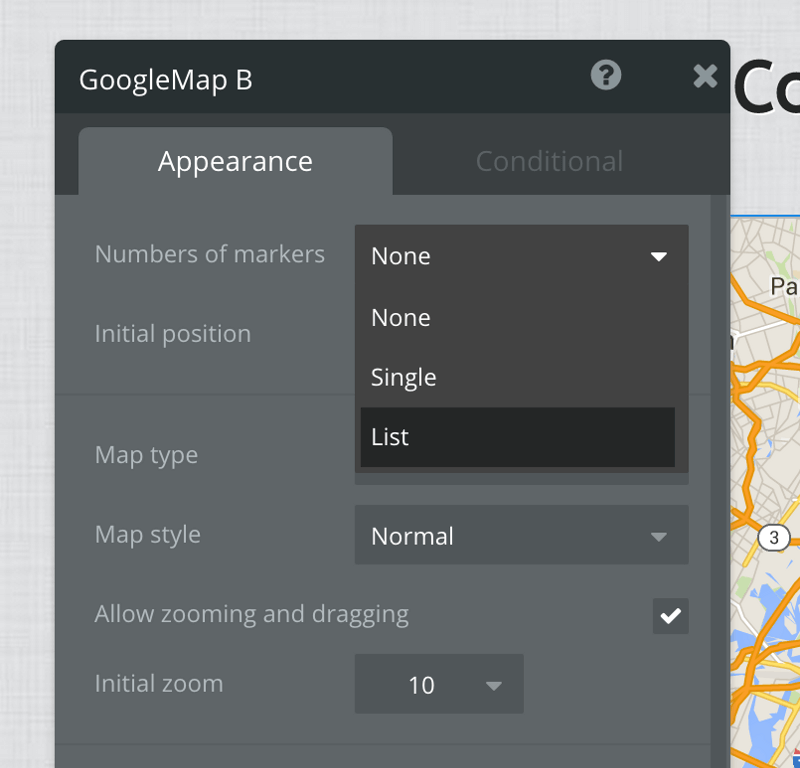
The only thing I need to do here is define which list I should display. First, we want to display a list of markers.
Then, we pick the type ‘Coffee Shop’ as that’s what I want to display in my map. Let’s click on data source to define the list we want to display. In this case, we’re just searching for all coffee shops, so let’s not add constraints.
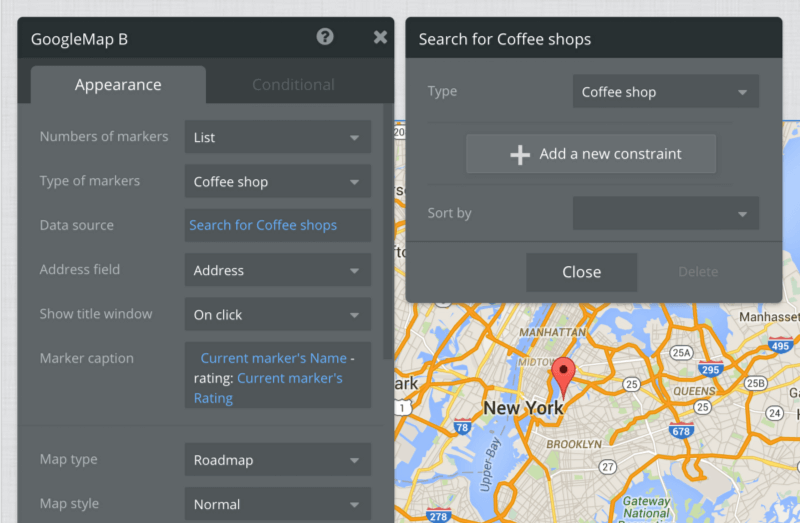
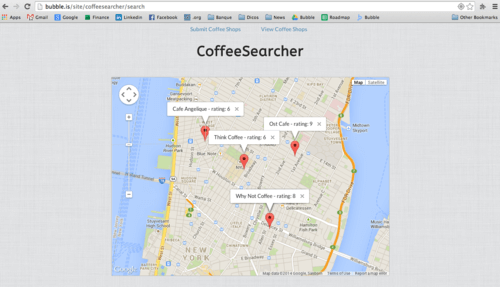
The last thing we want to do is display some legend on that map with the coffee shop rating (so that we can see the highest rated coffee shops)!
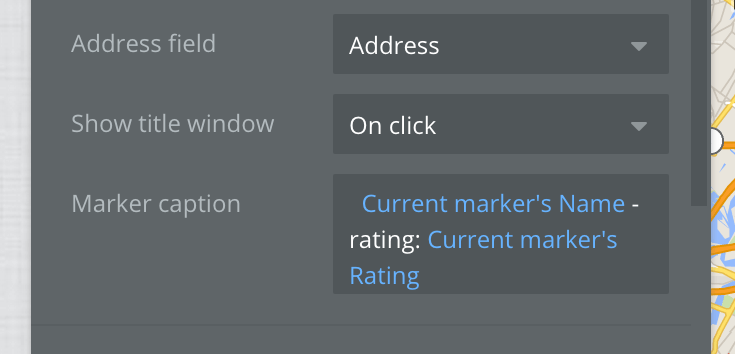
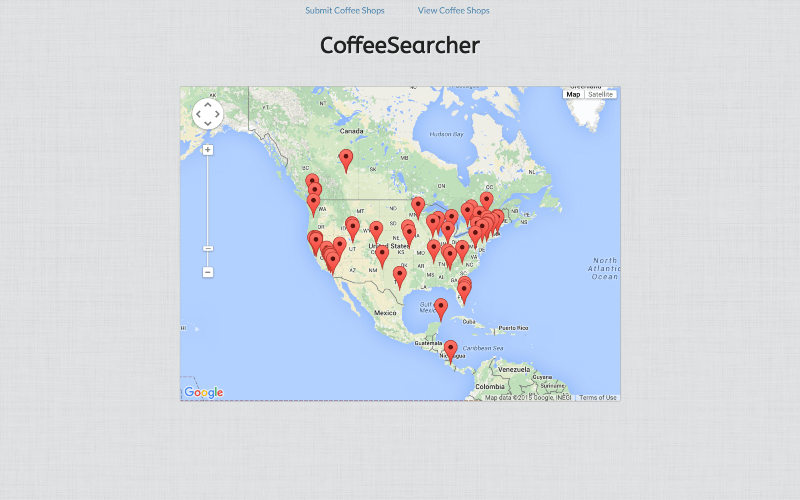
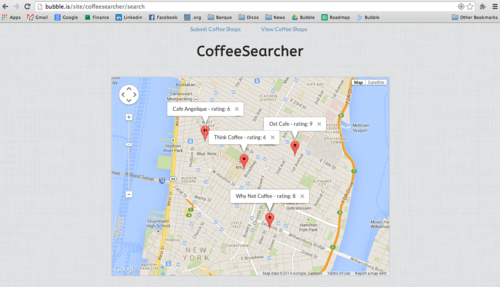
And we’re done! Here are some coffee shops I submitted, but feel free to enter yours :)
That’s All!
Here is the working app: https://bubble.is/site/coffeesearcher/index
And here is the ‘source code’: https://bubble.is/page?id=coffeesearcher
In about 30 minutes, I’ve built a Yelp-like app. I can add plenty of other features. For instance, I can refine the search based on current location within a range of miles. I could also allow users to sign up and type comments about places, or even message people that like the same places and have a coffee date :)
Build for as long as you want on the Free plan. Only upgrade when you're ready to launch.
Join Bubble